Mac in Search document
Why iPhone Storage Can Be Full When iCloud Has Space
An iPhone can report that its storage is full while iCloud has plenty of space. These are separate allowances: device storage holds apps, photos…
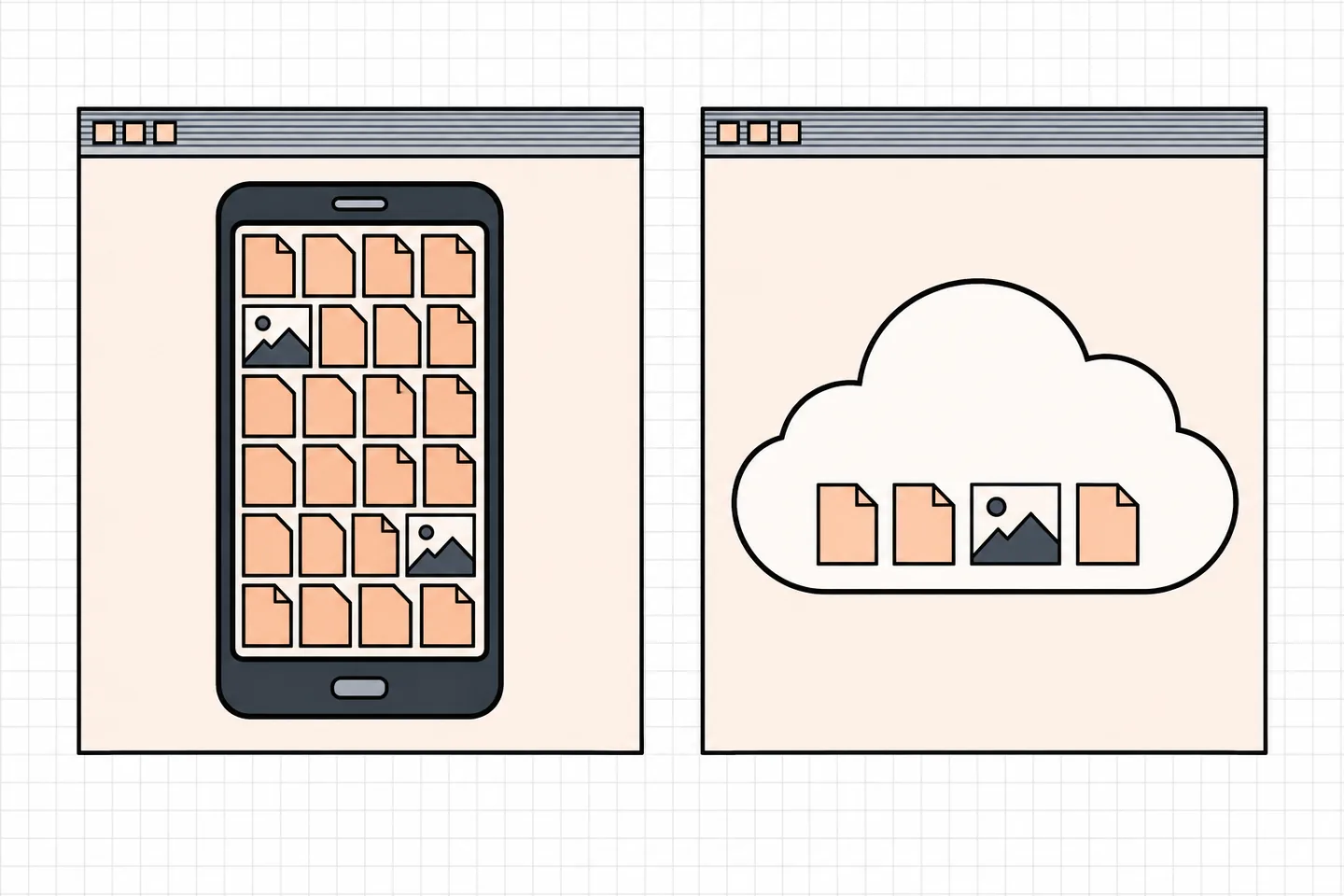
An iPhone can report that its storage is full while iCloud has plenty of space. These are separate allowances: device storage holds apps, photos, downloads and other local data; iCloud stores content used by cloud services. Spare iCloud capacity does not increase the phone’s built-in capacity. Apple explains the difference in its guide to device and iCloud storage.
First find out what occupies the phone. Then check whether the cloud feature you expect to help, particularly iCloud Photos, is enabled and up to date. Do this before deleting anything you want to keep.
Compare the two storage readings
Open Settings > General > iPhone Storage. This screen shows local usage, recommendations when available and a list of apps by storage use. Tap an app for more detail. Next open Settings > your name > iCloud to see cloud usage. Note both readings. The iCloud figure cannot tell you which app is filling the phone.
If only the iPhone is nearly full, investigate its local categories. If both are nearly full, address each allowance separately: a full iCloud account can prevent cloud features from staying up to date. If both have room but a photo is missing on another device, check syncing instead of clearing storage.
Keep the figures for comparison after you act. Freeing iCloud space may help a paused upload resume, but it will not itself remove a downloaded video or an app from the iPhone. Conversely, offloading a local app does not increase your iCloud allowance. Match each proposed fix to the screen showing the shortage.
Identify the local cause
In iPhone Storage, use the app list as well as the coloured bar. A large Photos entry points towards photo settings; a large app or collection of downloads needs a different remedy. Apple’s device storage guide says the Apps category can include app content, files under “On My iPhone” and Safari downloads. Downloaded iCloud Drive files can also occupy device space.
Open a large app’s storage details before acting. Offload App removes the app but retains its documents and data. Delete App removes the app and its related data. Some apps let you remove selected documents or downloads instead. Check what a recommendation will remove and make sure important content is available elsewhere. Do not assume a system or temporary-data category consists of files you can delete individually.
For media apps, inspect downloads inside the app. For files, check whether they are stored locally or downloaded from iCloud Drive. Work on the largest category you can safely change, then return to iPhone Storage to see whether it made a useful difference.
For example, a film kept for offline viewing belongs to a different cleanup decision from a document created in an app. Remove a download you can obtain again only when you no longer need it offline. For an app containing original work, verify the work exists somewhere else before deleting the app. An apparent saving is not useful if it costs the only copy of a file.
If Photos is large, check its storage setting
Having room in iCloud does not prove that iCloud Photos is on, that syncing has finished or that the phone is set to save local space. Open Settings > your name > iCloud > Photos. Check whether this iPhone syncs photos and which storage option is selected. Labels and layout can vary with iOS version.
With Optimise iPhone Storage, full-resolution originals are stored in iCloud while smaller versions can remain on the phone. Apple says optimisation begins with photos and videos accessed least when more space is needed. Photos still use some local storage, and the reading need not change immediately. Apple describes the storage behaviour and the Photos settings.
If the phone is set to keep originals, its local library may stay large despite being synced to iCloud. Optimisation may help when you want to retain the library but reduce its device footprint. Give the phone time to process the change and check storage again. If Photos is a small category, focus on the larger app or download instead.
Optimisation changes which versions are stored locally; it is not a command to delete selected photos. When you need an original again, Apple says it can be downloaded over Wi-Fi or mobile data. Consider that connection requirement if you expect to edit or share a full-resolution item while travelling. Keep originals on the device if reliable offline access matters more to you than the space saving.
Confirm that the library has synced
A photo appearing on the iPhone does not prove its upload has finished. Open Photos and inspect the library status. Apple’s iCloud Photos sync guidance explains where to find it in newer layouts and in iOS 17 or earlier. Follow the status shown on your own device rather than assuming that available iCloud space means syncing is complete.
If syncing is paused, look for the stated reason. Apple lists low power, a poor network connection, a device that needs to cool down and insufficient iCloud storage among possible causes. Connect to power and Wi-Fi where appropriate and allow time for the library to update. Check that the iPhone uses the same Apple Account as the other device. Apple advises against turning iCloud Photos off merely because syncing has stalled.
On recent layouts, open Photos > Collections and tap the profile button; the status appears below your name and photo count. On iOS 17 or earlier, open Library > All Photos and scroll to the bottom. If you use a Shared Photo Library, also check which library view is selected: a photo moved to the shared library will no longer appear in the personal library view.
Check an important photo in the intended library, or verify a separate saved copy, before relying on it elsewhere. A full phone and an unfinished cloud upload can occur at the same time.
Protect photos before deleting them
When iCloud Photos is syncing, deleting a photo in Photos also deletes it from other devices using iCloud Photos with the same Apple Account. The iPhone User Guide says deleted items normally stay in Recently Deleted for 30 days. That recovery period is no substitute for preserving a photo you intend to keep; permanent deletion there removes that recovery route.
Before a large cleanup, decide which originals you need. Confirm syncing has finished, then make an independent copy on a suitable computer or other destination and open a sample, including videos. If you are unsure whether the copy contains full-resolution originals, resolve that before deleting anything. iCloud Photos keeps a library in step across devices; it is not an unchanged archive of photos you delete from that library.
Choose the next step
- Photos dominates local storage: Check iCloud Photos, its sync status and the Optimise iPhone Storage setting. Recheck device storage after the library has had time to process.
- Another app dominates: Review its documents and downloads. Choose a selective cleanup or offload only after checking what remains available.
- Both allowances are nearly full: Review local usage and iCloud usage separately. Preserve wanted photos before deleting synced items.
- Photos are missing on another device: Check the Apple Account and library status. Resolve a paused sync before treating it as a storage problem.